SSH
Instructions:
- Create a public RSA (SSH) key on your local ‘nix machine under a bash shell
1. Manually Generating your SSH key in MacOS
1. Open **Terminal**
1. The Terminal window opens with the commandline prompt displaying the name of your machine and your username
2. Enter the following command in the Terminal window
<code>cd ~/.ssh
ssh-keygen -t rsa
</code>
3. This starts the key generation process. When you execute this command, the ssh-keygen utility prompt you to indicate where to store the key
4. Press the ENTER key to accept the default location. The ssh-keygen utility prompts you for a passphrase
5. Type in a passphrase. You can also hit the ENTER key to accept the default (no passphrase). However, this is not recommended
6. You will need to enter the passphrase a second time to continue.
7. After you confirm the passphrase, the system generates the pair.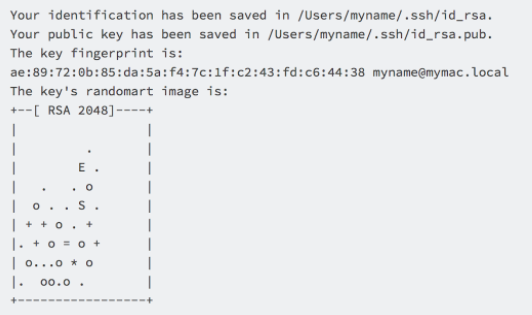
8. Your private key is saved to the id_rsa file in the .ssh directory.
9. Your public key is saved to the id_rsa.pub file.
10. You can save this to the clipboard by running:
<code>pbcopy < ~/.ssh/id_rsa.pub
</code>
-
Add the SSH key to your account by selecting “My Account” and then “Edit SSH keys” on the left hand side of the page. This is where you would paste your SSH key from the prior step.
-
Email the Georgia Tech Elba team with your GitHub username to gain access into the GitHub repository
-
Elba email address: Elba@cc.gatech.edu
-
If you are unfamiliar with GitHub, please create an account at GitHub.com